Friday, August 10, 2018

How to Fix A Broken iPhone Home Button 2019


How to Fix A Broken iPhone Home Button?
Tip 1: Calibrate Your iPhone/iPad

First, you should calibrate your iPhone. This is fairly straightforward and isn’t as hard as you think.


Open one of the default apps (e.g. Clock, Weather, News, etc.).


Hold down the lock button until you see the power slider appear.


Press and hold down the iPhone Home button until you’re returned to the main screen.


After doing this, the home button will be recalibrated. Unfortunately, this won’t always fix your iPhone problems.
Tip 2: Clean Your iPhone/iPad Home Button

As simple as this might seem, cleaning your home button every once in a while is important. All you need is some rubbing alcohol and a cotton swab.


Place a few drops of rubbing alcohol onto the home button.


Take your cotton swab and press it down into the rubbing alcohol.


Carefully move the swab in a circular motion, continue to hold down the home button for a few minutes.

Doing this will remove any dust or lint from your home button that could be interfering with its functionality.
Tip 3: Enable AssistiveTouch on iPhone/iPad

No luck so far? If you don’t have the time to try anything else, then you can use AssistiveTouch to create a home button alternative.


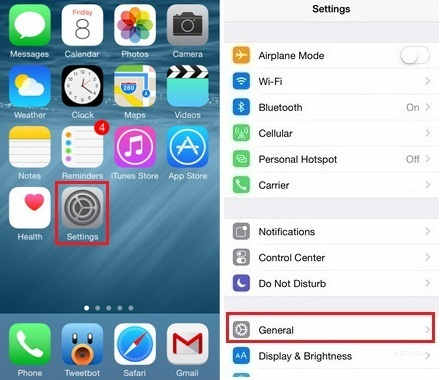
Open the “Settings” app and go to “General > Accessibility”.


Swipe to the bottom of this menu and tap on “AssistiveTouch”.


Simply touch the slider to enable it and a white circle will be shown on the screen. This circle can now be used as a home button.


The iOS AssistiveTouch feature is very underused and it has a lot of different uses - an alternative home button is just one example.
Is Your Home Button Completely Non-Workable?

If, after trying these tips, you find that your home button is completely broken, then you won’t be able to access your “Settings” app. For example, if you’re in another application or playing a game, you won’t be able to exit it.

While there are a few assistive features that you’re able to have enabled by connecting your iPhone to iTunes, AssistiveTouch can only be abled through the “Settings” app. Keeping that in mind, if you can’t enable AssistiveTouch, go ahead and jump forward to the end of this article where we discuss hardware repair.
Tip 4: Hardware Repair

Even if you have managed to enable AssistiveTouch on your iPhone/iPad, this isn’t a permanent solution to a broken home button iPhone. Even though it’ll be helpful for short-term usage, you’ll eventually realize the inconvenience of a broken iPhone home button.

So, if you decide to have a professional fix this issue, fantastic. One thing that’s worth checking is whether or not your iPhone/iPad still has an active warranty. If your warranty is still active then you’ll be able to get it fixed for free by contacting Apple Support- if not, you’ll have to pay.

Gihosoft Total Video Converter is a professional all-in-one video tool that enables you to convert videos and audios into various different formats. You can also download videos from YouTube or other online video sharing sites and convert them easily. Plus, you’re able to personalize your videos with its inbuilt editor, such as, trimming, cropping, applying video effects, adding watermark, subtitles, and more. If you need a powerful and professional desktop video converter program, just download Total Video Converter and follow the step-by-step guide here to have a try.


Jihosoft Android Data Recovery: the best Android Data Recovery software for Windows and Mac to recover deleted contacts, messages, photos, videos, WhatsApp and etc from Android devices.


Gihosoft Free Android Data Recovery can help you easily recover lost data such as photos, videos, contacts, text messages, WhatsApp & Viber chats from Google Pixel/XL or other Android phones effortlessly.


If you lost videos from iOS Camerall Roll which are nowhere to download again, you can use Gihosoft iPhone Data Recovery to get back deleted videos from iOS device including iPhone, iPad and iPod Touch.


Any app suggestions or topic recommendations are appreciated in the comments down below.

How to Manually Clean Your iTunes Mobile Application Folder


How to Manually Clean Your iTunes Mobile Application Folder

Manually Clean Your iTunes Mobile Application Folder


It is possible to manually get rid of the junk in your iTunes mobile application folder. Although, in order to do this, you would need to know your way around your device and its directories.


Generally, your iTunes media folder is stored in the following directory:


For Windows: C:\Users\chen\Music\iTunes\iTunes Media\Mobile Applications


For Mac: Go to Go > Home > Music > iTunes > iTunes Media > Mobile Applications


Once the folder is opened, you can then select the mobile apps you want to delete and erase them manually. You shouldn’t have any worries though if you know your way around your device and its directories.


Gihosoft Total Video Converter is a professional all-in-one video tool that enables you to convert videos and audios into various different formats. You can also download videos from YouTube or other online video sharing sites and convert them easily. Plus, you’re able to personalize your videos with its inbuilt editor, such as, trimming, cropping, applying video effects, adding watermark, subtitles, and more. If you need a powerful and professional desktop video converter program, just download Total Video Converter and follow the step-by-step guide here to have a try.


Jihosoft Android Data Recovery: the best Android Data Recovery software for Windows and Mac to recover deleted contacts, messages, photos, videos, WhatsApp and etc from Android devices.


Gihosoft Free Android Data Recovery can help you easily recover lost data such as photos, videos, contacts, text messages, WhatsApp & Viber chats from Google Pixel/XL or other Android phones effortlessly.


If you lost videos from iOS Camerall Roll which are nowhere to download again, you can use Gihosoft iPhone Data Recovery to get back deleted videos from iOS device including iPhone, iPad and iPod Touch.


Any app suggestions or topic recommendations are appreciated in the comments down below.

Tuesday, August 7, 2018

How to Wiper iPhone Clean before you sell it 2019 Guide


How to Wiper iPhone Clean before you sell it
Wiper iPhone Clean with iTunes (Recoverable)


You can also reset your iPhone via iTunes. Obviously, you will need a computer with iTunes installed on it in order to reset your iPhone via this method.


Connect your iPhone via USB cable to your computer.


Launch iTunes and backup your data via the Back Up Now button (optional).


After the backup is successfully created, click your iPhone in iTunes. It will be shown on top of the window.


Then find and click on the option called Restore iPhone. The reset process will begin. Your iPhone will automatically start after the reset.


Note


If for some reason you cannot restore your iPhone via the standard method, then it is recommended that you put your iPhone in Recovery Mode and then repeat the above-mentioned steps to reset your iPhone. It will be reset without any issues.


Like the above methods, this method cannot erase data permanently.
Reset with iCloud (Recoverable)

Another way to reset an iPhone is to use iCloud’s remote reset feature. You will need to use Find My iPhone feature of iCloud to do this.


Visit icloud.com/#find on your favorite web browser.


Log in using the same Apple ID and password that is linked with your iPhone that you wish to reset.


After successfully logging in, click on Find My iPhone.


Now click on All Devices and then find and select your iPhone from the provided list. It will display several options.


From the list of options, find and click on Erase iPhone. Remote erase process will begin.


Note


iCloud reset method won't work if your iPhone is offline. If its offline, then the reset process will begin as soon as it is connected to a working internet connection.


Data erased is not permanent and can be easily recovered via a data recovery software. So, the risk of privacy leak is still there even after the reset.


If you lost videos from iOS Camerall Roll which are nowhere to download again, you can use Gihosoft iPhone Data Recovery to get back deleted videos from iOS device including iPhone, iPad and iPod Touch.

Thursday, August 2, 2018

How to Remove Facebook Contacts from iPhone on iOS 12/11(and Earlier)


How to Remove Facebook Contacts from iPhone on iOS 12/11(and Earlier)
Disallow Facebook's access to Contacts

Though Facebook contacts cannot be deleted like normal contacts, you can disallow Facebook's access to your contact directory.

1. Go to device Settings.

2. Scroll to the Facebook app.

3. Access the Facebook app settings by clicking on it. You can modify your contacts information from here. However, you must be signed into Facebook to modify the information.

4. Tap the toggle beside "Contacts". It should turn grey, thereby removing all Facebook contacts from your iPhone.


Disable Facebook in Device Contacts App

Another effective way of removing Facebook contacts from iPhone directory is to disable it in your contact app.

1. Go to your "Contacts" app. By default, it comes displayed on your iPhone home screen. The icon bears the silhouette of a man with colored tabs on its right side.

2. Click on the "Groups" option at the upper left corner of the screen.

Note: If the "Groups" option doesn't show, it means your Facebook contacts are not synced, because the "Group" option manages the various sources from which contacts are saved.

3. Click on "All Facebook." The checkmark on this option should vanish, removing all Facebook contacts. This also forces the checkmark on the "All iCloud" to do same.

4. Click on "All iCloud" to re-allow iCloud contacts. Do likewise with contacts from other sources which you want to show.


Remove Facebook Account

Want to stop Facebook from accessing your data? One very sure way is to delete the Facebook account. This does not delete your app, nor take out your account from Facebook.


Go to your Facebook app in device "Setting."


Click on it to open the "Setting" menu.


Click on your name.


Tap "Delete Account," and then click "Delete" when prompted. Then all the Facebook contacts will be removed from your iPhone.
Bonus: How to Permanently Erase Contacts from iPhone

Occasionally, the need to delete one/few/all contacts on your iPhone arises. It may be a situation where one wants to remove old contacts, to clear space, or a case of switching carrier. There are numerous ways to erase contacts from your device.
Step 1. Delete Contacts from iPhone Contact App

It's a known fact that the Apple software doesn't permit multiple deleting of multiple contacts on iPhone/iPad. You can however directly delete contacts individually in your device contact app. Here's how:


Open Contacts app on your iPhone.


Select the contact you intend to delete, and tap on the ‘Edit' button on the right.


Scroll down, and click on ‘Delete.' And, that is it!


Note

This method, however, has its shortcoming. It doesn't exactly provide permanent deletion, as data can be easily recovered, with the right tools in place.

Sponsor Ads:
Gihosoft Free iPhone Data Recovery is a professional iPhone Data Recovery software to get back all your lost text message, photo, video, call history, note, contact and more from iPhone/iPad/iPod Touch. It offers a full solution to recover your lost data in different tough situations. Besides recovering data directly from iPhone, iPad and iPod touch, it also allows you to recover data from iCloud and iTunes backup files.

iPhone backup unlocker:Recover iTunes Backup Password.

iPhone backup extractor free:The best iPhone Backup Extractor software to extract photos, text messages, contacts, voice memos, note, WhatsApp, Viber and etc from iPhone/iPad backup.

Comment and win free lifetime registration code of Gihosoft Total Video Converter.
Youtube/Tumblr video downloader - Download Youtube/Tumblr video lets you convert and download Youtube/Tumblr to MP4 and MP3 for Free!


Tuesday, July 31, 2018

How to install iOS 12 Beta 5 on iPhone or iPad

How to install iOS 12 Beta 5 on iPhone or iPad
Apple releases iOS 12 beta 5 for registered developers for download for iPhone, iPad and iPod touch.


The 5th Beta of iOS 12 consists of many changes and updates that are listed below:
New Apple News Button, Use as Wallpaper Button & Copy iCloud Link Button
New Sound in FaceTime
New icon for media types in Photos app
Updates Stocks Widget
New Search by Lyrics box in Music App
And More
The iOS 12 developer beta 5 is currently available for download registered developer only. The registered developer can install this beta from the developer account or can directly update via OTA mechanism if they have already installed the previous beta from Settings >> General >> Software Update.Sponsor Ads:
Gihosoft Free iPhone Data Recovery is a professional iPhone Data Recovery software to get back all your lost text message, photo, video, call history, note, contact and more from iPhone/iPad/iPod Touch. It offers a full solution to recover your lost data in different tough situations. Besides recovering data directly from iPhone, iPad and iPod touch, it also allows you to recover data from iCloud and iTunes backup files.
iPhone backup unlocker:Recover iTunes Backup Password.
iPhone backup extractor free:The best iPhone Backup Extractor software to extract photos, text messages, contacts, voice memos, note, WhatsApp, Viber and etc from iPhone/iPad backup.


What’s new in iOS 12


If you’re not a developer then you can join the Apple Developer Program, which includes a signup fee of $100.


But is it possible to get the developer beta 5 of iOS 12 even without developer account?

Of Course Yes! You can easily install iOS 12 beta 5 profile on your iPhone, iPad and iPod Touch without Developer Account or Computer but we don’t recommend and try it at your own risk. There may be many bugs and issues in beta so better to wait for the final public version of iOS 12.


Simply follow this below steps how you can install and update to iOS 12 beta 5 right from your iPhone or iPad. For this, you don’t need developer account or any computer and it’s super easy.


Download iOS 12 beta 5 without developer account


Step 1: Launch Safari on your iPhone/iPad, and enter this URL.


Step 2: It will then redirect to iOS 12 beta profile management page. Tap to Slow download (Free) to install the developer profile on your device.


Step 3: After the profile is installed, you will be asked to restart your device. Tap on Restart.


How to install iOS 12 beta 5 without developer account


Step 4: Now Go to Settings >> General >> Software Update. Tap Download and Install iOS 12 beta on your iPhone/iPad as normal like you update via OTA.


Step 5: Enter your passcode. Agree on the terms & Condition.


Step 6: Seat back and relax for sometimes until it completes downloading. Next Tap on install to get iOS 12 on your iPhone or iPad.


That’s it. You have now iOS 12 beta 5 installed on your iPhone/iPad without a developer account.


iOS 12 Compatible devices


So this is all guys! Hope you find it useful and don’t forget to share it with your friends too.


If you lost videos from iOS Camerall Roll which are nowhere to download again, you can use Gihosoft iPhone Data Recovery to get back deleted videos from iOS device including iPhone, iPad and iPod Touch.
Jihosoft iPhone Backup Extractor Extract and recover all types of data from iPhone backup files, such as camera roll photos, videos, SMS, contacts, reminders, WhatsApp, and etc.
Gihosoft Android data recovery Free is a super awesome software specialized in Android file recovery.


Monday, July 30, 2018

How to Turn On Mono audio on iPhone X, iPhone 8/8 Plus, iPhone 7/7 Plus, 6, 6 plus – other iOS 12 and Earlier devices 2019

Turn On Mono audio on iPhone X, iPhone 8/8 Plus, iPhone 7/7 Plus, 6, 6 plus – other iOS 12 and Earlier devices 2019
How to Turn On Mono audio on iPhone X, iPhone 8/8 Plus, iPhone 7/7 Plus, 6, 6 plus – other iOS 12 and Earlier devices 2019
Turn On Mono audio on iPhone X, iPhone 8/8 Plus, iPhone 7/7 Plus, 6, 6 plus – other iOS 12 and Earlier devices

Step 1.

Launch Settings Appyourrom you iPhone home screen

Step 2.

Tap On, General

Step 3.

Select, Accessibility

Step 4.

Tap, Turn Mono Audio ON, under the hearing section.


How to disable/ Turn on Mono Audio on iPhone
Get here tip about how to Disable or Turn off Mono Audio on iPhone iPad or iPod touch. You can do it beneath given way.

Settings >> General >> Accessibility >> Turn Mono Audio Off
You can also inform us without hesitate, if have issue or error concern to this tip turn off or turn on mono audio. kindly keep in touch with us to get a daily update of our site.iPhone backup unlocker:Recover iTunes Backup Password.

iPhone backup extractor free:The best iPhone Backup Extractor software to extract photos, text messages, contacts, voice memos, note, WhatsApp, Viber and etc from iPhone/iPad backup.

Wednesday, July 25, 2018

How to Reset Frozen iPhone after iOS 12 Update without iTunes

How to Reset Frozen iPhone after iOS 12 Update without iTunes

Force Reboot the iPhone Frozen after Updating to iOS 12

When we speak of reset frozen iPhone without iTunes, the most frequently used option that comes in mind is soft reset/force restarting the iPhone. This usually resolves most iOS issues that occur due to different reasons such as iOS 12 update, unstable and buggy apps, etc.

Here is how to force restart an iPhone 6/older versions –


Tap and hold down the 'Sleep/Wake' and 'Home' keys together. Wait until the Apple logo surfaces on screen.


Un-hold both the keys as soon as you see the Apple logo. Let the iPhone start on its own afterwards.


For iPhone 7/7 Plus –


Press and hold the Sleep/Wake' and 'Volume Down' keys simultaneously. Lift your fingers from the keys only after seeing the Apple logo on your iPhone screen. Your iPhone will then be rebooted.


If you have an iPhone 8/iPhone X with you –


Click and release the 'Volume Up' key quickly.


Repeat the same procedure with the 'Volume Down' key as well.


You need to hold down the 'Power' key afterwards, till the Apple logo is visible on screen. Give some time to allow the iPhone restart.If you lost videos from iOS Camerall Roll which are nowhere to download again, you can use Gihosoft iPhone Data Recovery to get back deleted videos from iOS device including iPhone, iPad and iPod Touch.


Jihosoft iPhone Backup Extractor Extract and recover all types of data from iPhone backup files, such as camera roll photos, videos, SMS, contacts, reminders, WhatsApp, and etc.


Gihosoft Android data recovery Free is a super awesome software specialized in Android file recovery. With this program, you are able to recover deleted photos, music, videos, messages, contacts, call logs, WhatsApp messages, Viber chat history and more from Samsung, Huawei, LG, HTC, Motorola, Google, Oneplus, Sony, Lenovo, ZTE and other Android devices directly. Meanwhile, this Android data recovery software is available for both Windows and Mac platforms.


Find Out How to Empty Trash on Mac

Manual Ways to Empty Trash on Your Mac Using automatic tool like Umate Mac Cleaner is the most efficient way to empty trash on Mac, howev...