Thursday, July 12, 2018

5 Secrets for clicking the best iPhone X photographs 2018 Guide

As always Apple again took the hold of the market this year. We all know iPhone is the most gifted phone in the world. The new launches of iPhone 8, 8 plus, and X models have made massive sales and are being known for their amazing camera results. Though both iPhone 8 and 8 plus are loved by people, iPhone X is something next level due to its unique camera features.
iPhone X with face recognition, the missing main home button, and the camera features are making this smartphone way much popular than any other iPhone. Most people are still exploring the camera system of this device. All the pictures being clicked on this phone are exceptional and are being loved by the users! With this phone in hand, you can not only shoot pictures in Portrait mode, you can also expand portrait lighting, and utilize the completely remodeled back camera.

Related:

  • Iphone Inbox
  • Inbox by Gmail acquires iPhone X support

  • iPhone Security Apps
  • 10 best iPhone security apps in history
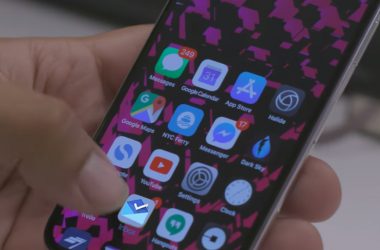
To help you shoot some really gorgeous pictures with your iPhone X, I have compiled these 5 secrets to take the best looking photos with your amazing phone. To find out these secrets, keep reading:

1: Zooming option in the Dark

I love this upgrade on iPhone X. It has made taking pictures in dark so much easier. Now you have the 2x lens in it, it works in low light. You can use both the lenses, no matter what are the lighting situations; your picture quality won’t be compromised.

2: Brighten any Scene with Flash

Usually, smartphone flashes are very harsh but Apple has introduced a new flash technology named as Slow Sync that shoots very beautiful and soft images by utilizing the phone’s innovative Quad-LED flash. It is suggested that this flash should be used in dim restaurants or after a sunset for best results.

3: Live Photo Effects

When you shoot live photos or a small video, it’s not completely a new feature that iPhone X has included, you will have a set of really nice effects using this superb technology. For example, like the DSLR camera features you can blur your background, generate a continuous Loop, or create a Boomerang which is very popular these days.

4: Portrait Modes

The Apple company made major developments in the portrait mode. The new iPhone X camera features just not have portrait mode with blurred backgrounds, it also has 5 new lighting modes for portraits, which includes natural light, contour light, studio light, stage lights and mono light (for black and white stage like photos). So, If you want to highlight your subjects, the photography level is up for you!If you accidentally deleted or lost videos on iPhone, first please check on the Recently Deleted folder. Alternatively, you can use the professional tool Gihosoft iPhone Recovery to recover deleted iPhone videos from Camera Roll or some apps.

5. Play with Burst Mode

For taking the best pictures, especially when you are traveling utilize the burst mode. You can shoot 10 photos per second with this outstanding burst mode of iPhone X. To utilize this camera feature, just hold the shutter icon for a while in your camera application. Sometimes photography is about shooting a short-lived moment.

6. How can we forget Video Modes?

There are various iPhone video modes that you can enjoy, exclusively when you are shooting a scene where this is some interesting movement or sound.
If you would like to capture something like clouds moving slowly in the sky you must go for the time-lapse mode in your iPhone X. If the scene you want to shoot is a bit fast, for instance, birds flying in the sky or landing fast in the water then you must try slow motion video mode.

Wednesday, July 11, 2018

iPhone Flashing Apple Logo On and Off? Here Are 3 Tips

1. Force Reboot iPhone

When your iPhone gets stuck in a specific situation like this and doesn't work even after trying numerous times to get out of the Apple logo loop, you can try force rebooting it. Force reboot fixes iPhone or iPads when they become unresponsive to user interactions and bring them back to normal. Here, we are going to explain to you, how to force reboot the iPhone and get it back to action.

iPhone 6S, SE or Older Versions –

Press and hold the 'Sleep/Wake' button along with the 'Home' button till the Apple logo starts appearing on screen.
hard reboot iPhone 6

iPhone 7/7 Plus –

  1. Tap the 'Power/Lock' button (found on the side of the phone) and 'Volume Down' key (present on the left side) together until the Apple logo appears.
  2. The 'Slide to Power Off' slider will appear, which you need to ignore during this period and let the iPhone enter the startup process.
hard reboot iPhone 7

iPhone 8/iPhone X –

  1. Tap the 'Volume Up' key and let go instantly.
  2. Then repeat the same with the 'Volume Down' key as well.
  3. Now, tap and hold the 'Power' key as long as the Apple logo is not visible.
force reboot iPhone 8
Note: After the appearance of Apple logo, ensure to feed in the passcode of your iPhone rather than a fingerprint ID, to ensure the issue gets resolved without any glitch.
Now that the device has been force restarted we hope your iPhone flashing Apple logo problem is fixed, along with other iOS system issue.Gihosoft Free iPhone Data Recovery is a professional iPhone Data Recovery software to get back all your lost text message, photo, video, call history, note, contact and more from iPhone/iPad/iPod Touch. It offers a full solution to recover your lost data in different tough situations. Besides recovering data directly from iPhone, iPad and iPod touch, it also allows you to recover data from iCloud and iTunes backup files.


2. Restore iPhone with iTunes Using Recovery Mode

You can also restore your iPhone with iTunes using recovery mode when your device doesn't respond to restore or update normally. In those cases, your iPhone needs to be rebooted in recovery mode and then restore via iTunes to perform normally. Here are the steps –
Step 1. Update your iTunes to the latest version, and exit it if already open. Now, get your iPhone connected to the PC and launch iTunes and force restart it following the below mentioned steps. You need to keep getting hold of the buttons when the Apple logo appears unless your device establishes connection with iTunes successfully.
iPhone 6S and older/iPad/iPod touch –Hold down the 'Home' and 'Power' buttons simultaneously till the 'connect to iTunes' screen appears.
iPhone 7/7 Plus –Hold down the 'Power' and 'Volume Down' buttons together till 'connect to iTunes' is visible on screen.
iPhone 8/8 Plus/iPhone X –Tap and instantly release the 'Volume Up' key and then repeat the same with 'Volume Down' key. Hold down the 'Power' button till 'connect to iTunes' appears on screen.
Step 2. Click on the 'Restore iPhone' button after that and iTunes begins reinstalling the iOS and restoring your device back to the normal state (factory state). You then need to setup your iPhone from scratch when the process completes.
Note
Performing restore with iTunes will wipe off all your data from your iPhone, consider twice before choosing this method.
restore iPhoen using iTunes

3. Check iPhone Hardware at Apple Store

In case the iPhone flashing apple logo on and off issue is not resolved with any of the above methods, it might be a hardware issue. Getting in touch with Apple customer care will be of great help in resolving problem. They will check if there is a hardware problem that causes your iPhone flashing apple logo.

Monday, July 9, 2018

Hоw to Rеѕеt іPhоnе wіth іTunеѕ - Rесоvеrаblе 2018 Top Guide


Hоw to Rеѕеt іPhоnе wіth іTunеѕ - Rесоvеrаblе


If you don’t need the data on your iPhone anymore then you can just go through the process. But if you don’t want to lose your data, and then make sure that you have backed up all your essential data or have stored it in some other device. The steps below show how to reset your iPhone with iTunes.


Step 1: Connect your iPhone to the computer and open iTunes.


Step 2: Open iTunes and click the device tab from the top left corner.


Step 3: Click the Restore iPhone button in the center of the iTunes Summary tab.


Step 4: When the pop-up message shows up, click on Restore.


Step 5: When finished, iTunes will ask if you want to restore form backup. Choose “Set up as a new iPhone”.


Step 6: Enter a name for your iPhone and the process is complete.


Nоtе: About how to reset iPhone with iTunes you should know that after the process done, iTunes will delete the information and settings on your iPhone and install the latest version of iOS software. The data deleted just from your phone not from its device drive, so if you need to completely erase them you need a permanent reset on it.


Sponsor Ads:


Gihosoft Free iPhone Data Recovery is a professional iPhone Data Recovery software to get back all your lost text message, photo, video, call history, note, contact and more from iPhone/iPad/iPod Touch.

Gihosoft Android data recovery Free is a super awesome software specialized in Android file recovery. With this program, you are able to recover deleted photos, music, videos, messages, contacts, call logs, WhatsApp messages, Viber chat history and more from Samsung, Huawei, LG, HTC, Motorola, Google, Oneplus, Sony, Lenovo, ZTE and other Android devices directly. Meanwhile, this Android data recovery software is available for both Windows and Mac platforms.


Friday, June 8, 2018

How to Use iTunes File Sharing


How to Use iTunes File Sharing


Here, we will discuss how to use the iTunes File Sharing feature on iPhones and iPads. In the end, you should be able to use this feature effectively on your own without any help.


Step 1. You need your iTunes functional for this to work.


Step 2. Connect your iPhone or iPad to your PC or Mac with iTunes using a USB Cable.


Step 3. Proceed to launch the iTunes application.


Step 4. Then unlock your iOS device and click its icon on the toolbar in iTunes.


Step 5. Look for the APPS category, around the sidebar and scroll down in the right pane.


Step 6. You will find a list of home screens, after which comes the “FILE SHARING” section.


Step 7. Click any of the apps under the FILE SHARING section, and the document library for the app will load.


Step 8. Drag and drop these files into a folder to copy them from your iDevice to your PC.


Step 9. Also, drag and drop files from your PC or Mac to the library view if you want the transfer to go the other way round.


Note that apps will only appear under the FILE SHARING section if the developer has particularly allowed them to function with the feature. Perhaps you have an app on your iDevice but is absent under the FILE SHARING section, just know that the developer never integrated the functionality.Sponsor Ads:


Gihosoft iPhone Data Recovery is a professional iPhone Data Recovery software to get back all your lost text message, photo, video, call history, note, contact and more from iPhone/iPad/iPod Touch. It offers a full solution to recover your lost data in different tough situations. Besides recovering data directly from iPhone, iPad and iPod touch, it also allows you to recover data from iCloud and iTunes backup files.

5 Ways to fix ‘iPhone Text Messages Out of Order’


5 Ways to fix ‘iPhone Text Messages Out of Order’


A large number of iPhone users are facing such a problem nowadays. The text messages, which are sent or received, are displayed in any random order. iPhone text messages out of order can prove to be an extremely troublesome problem as because of it, you might overlook a message and miss an important one. Apple's authorities have not provided any reason behind it or any solution for it. However, try out these below-mentioned tips, and these will surely help you in solving this problem.Read Next:ipad home button not working
1. Disable the iMessage and after that Re-enable it


If you haven't come across such a problem before, and just the messages are being received in the incorrect order, then you should try this method to fix it with ease. Toggle your iMessage off. Wait for some time and then toggle it on. This procedure refreshes the application, thus enabling the messages to be displayed in the right sequence.


For doing this procedure, go the “Settings”, and then navigate to “Messages”. After that, find “iMessage” and then toggle it for disabling the application. Wait for 15 seconds or so and enable it. This trick will surely work out in solving the problem of iPhone text messages out of order but if it doesn't, then try the following mentioned tip.
2. Hard Reset your iPhone


Probably you would have already restarted your device. But usually, this normal restart does not help. It is recommended to Hard reset your device for dealing with the problem of iPhone text messages out of order. Here is how you can do it.


RELATED POSTS


Best Solutions to iPhone Contacts Missing


May 4, 2018


iPhone Notes Disappeared? – Best Solutions to Try


Apr 30, 2018


In case of iPhone 6 and its early models, you should perform the following task. Press and keep holding on to the “Home” button and “Sleep/Wake” button altogether. Press on it till you can see the Apple logo on your device's screen.


In case you have an iPhone 7 or a 7 Plus, you should hold the “Sleep/Wake” and “Volume Down” together and press them. Hold them till you see an Apple logo appear on your screen. Doing this will help solve the issue of iPhone text messages out of order.


If you use the iPhone 8 or 8 Plus, then you should hold and then release the button for “Volume Up” quickly. Repeat the same procedure for the “Volume Down” Button as well. Once you have done it, press the “Sleep/Wake” button till you see an Apple logo emerge on your device's screen.


3. Reset network settings and all other settings


If still your problem is not solved, then you should try this method for solving the issue of iPhone text messages out of order. Reset all of the settings on your device's setting panel. This will set the iPhone device as it was once when you had bought it. For doing this, go to the “Settings” then move on to “General”. Choose “reset” and navigate to “Reset all Settings.”


After that, type the Passcode on your device. Confirm this action. Network settings can also be reset to deal with a problem of iPhone text messages out of order. For doing it, navigate to the “Settings” of your device. Choose the “General” tab and next to the “Reset” tab. Press on the “Reset Network Settings” option. Feed the Passcode and confirm this action.
4. Set the Date and Time


You might be surprised to know that in some cases just disabling and then enabling the Date and Time settings will do the trick. So if your iPhone text messages out of order, then navigate to the “Settings”. After that, choose “General” in it and then, tap on “Date and Time”. Toggle it off and select the “Set Automatically” tab. Wait for 15-20 seconds and then re-enable it. You will start receiving your messages in order. But if you still don't, then try the next trick.


5. Try putting it on Airplane Mode


You can try doing this trick if ‘iPhone text messages out of order issue' is faced by you. Turn off the iMessages by performing these steps. Once you have disabled it, enable the “Airplane Mode” on your device. Turn of your iPhone device. Wait for a few minutes and then turn on your device. Next, turn the “Airplane Mode” off. Enable the iMesaage and now try to send messages and check if they appear in the right order now. Gihosoft iPhone Data Recovery is a professional iPhone Data Recovery software to get back all your lost text message, photo, video, call history, note, contact and more from iPhone/iPad/iPod Touch. It offers a full solution to recover your lost data in different tough situations. Besides recovering data directly from iPhone, iPad and iPod touch, it also allows you to recover data from iCloud and iTunes backup files. What's more, it supports Smart Recovery modes that can find your iPhone data quickly.https://www.gihosoft.com/iphone-data-recovery-free.html


Thursday, August 24, 2017

Apple Highlights Free App of the Week to "Colossatron"

Love playing strategy game? This week Apple Store has highlighted Colossatron: Massive World Threat, by Halfbricks Studio as ‘Free App of the Week’ this week that means you can download and enjoy this game at no charge throughout the whole week (free).

If you miss to download ‘Free App of the Week’ Colossatron: Massive World Threat now, you will be charged as a regular price $0.99. So hurry up and grab this puzzle game for iPhone, iPad for free. This app download is valid till this week for 7 days only. So once you download this app from App Store, you can use it forever for free.
How to transfer messages from iPhone to iPhone
Must read:Gihosoft Free iPhone Data Recovery:https://www.gihosoft.com/iphone-data-recovery-free.html
This week Apple Store has highlighted Colossatron: Massive World Threat, by Halfbricks Studio as ‘Free App of the Week’

From the App Store Editors’ Notes:
Colossatron is developer Halfbrick’s creative spin on a match-three game. Amid frenetic, explosive battlegrounds, attach colorful weaponry to a roving monstrosity and enhance its destructive power. The easy-to-understand gameplay and cleverly designed matching and upgrade mechanics reward careful, strategic play. With quirky humor and thoughtful attention to detail, Colossatron is an expertly crafted and accessible delight. Must Read:How to retrieve from icloud ?
Here's a demo of the game Colossatron: Massive World Threat ;

Wednesday, August 16, 2017

Steps to reset the password on a macOS Sierra-based computer

Password protecting a Mac is one of the best things you need to do to keep your computer from prying eyes. If you are one of those who frequently hand your Mac to other people or you simply forgot your admin user account password, you will probably want to reset the password on your computer to make sure that everything is safe.
The process of resetting the password on your Mac might not be known to many folks. That’s exactly what we will show you how to do in this post. Before proceeding with our step-by-step guide, note that the steps below work only for those who are running macOS Sierra.

Steps to reset the password on a macOS Sierra-based computer

Step one: First off, you need to reboot your Mac. Once your Mac’s screen goes black, make sure that you hold down COMMAND + R keys to boot your Mac into recovery mode
If you lost data after you updated to a new iPhone, you can always use Gihosoft iPhone Data Recovery to get the data back from the old iPhone or backup.You may also like: iphonerecovery.com
If you use android phones, please choose Gihosoft Android Data Recovery.
Step two: Next up, from the MacOS Utilities screen, all you need to do is to click on the Utilitiesmenu. After that, select Terminal from the pull-down menu
Step three: Once Terminal finishes loading, you simply need to type the following command: resetpassword 
Step four: You now need to press the Return key to bring up the Reset Password tool on your Mac. After that, select your user account or admin account you wish to reset the password for
Step five: From the Reset Password screen, you need to enter a new password, verify your password and enter a password hint. After that, you need to click on “Next” to proceed
Step six: On the next screen, select Restart. When your Mac finishes booting up, you simply need to enter the newly-reset password to login to your computer.
That’s all you need to do to reset a password on your Mac running macOS Sierra.
Got any issues during the process? Let us know in the comments below.

Find Out How to Empty Trash on Mac

Manual Ways to Empty Trash on Your Mac Using automatic tool like Umate Mac Cleaner is the most efficient way to empty trash on Mac, howev...